Applications
Staff, whitelist or any other application, answered in DMs and reviewed by your team.
Build application forms on the dashboard. Members pick one from a panel in Discord, answer the questions in a private DM with the bot, and your reviewers accept or deny them with one click.
1. Create a form
Open Applications and go to Forms.
- Application name and Description
- Review channel: where submissions are posted for your team. Type to search your channels.
- Roles given when accepted (optional): up to 10, like Whitelisted and Trial Staff. The bot's own role has to be above each of them in your server's role list. If one can't be given, the others still are, and the reviewer is told which one failed.
- Ping when a new application arrives (optional): up to 10 roles, mentioned once on each new submission.
Every role and channel box can be searched: start typing a name.
- Reviewer roles: who can accept and deny. Administrators and anyone with Manage Server always can.
- Default acceptance message and Default denial message
- Denial cooldown: how long someone has to wait before applying again after a denial.
- Accept new applications: switch it off to close the form without deleting it.
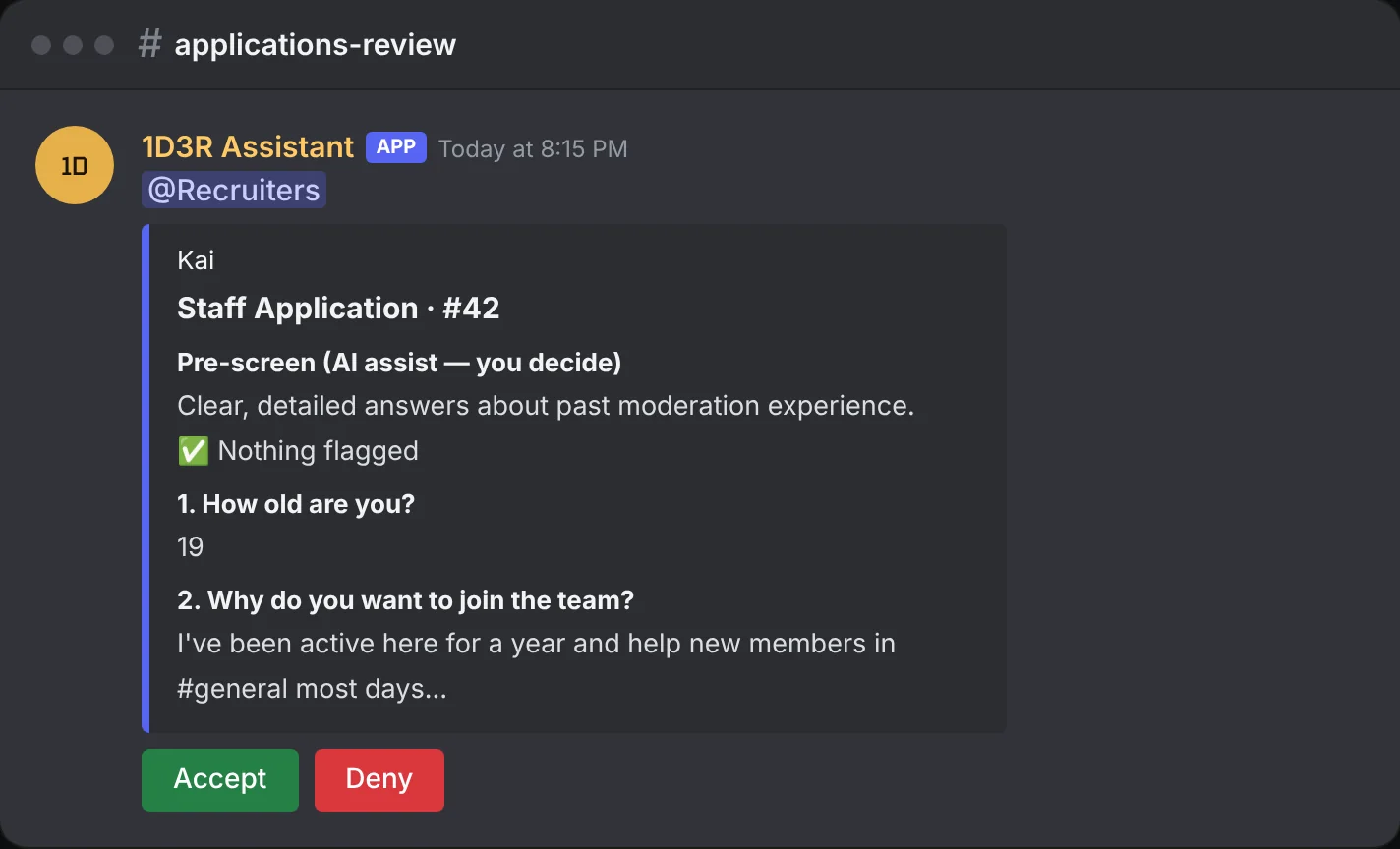
- AI pre-screening (Premium): a short neutral summary on each submission, flagging very short, copied or off-topic answers, active warnings and past denials. Reviewers still decide.
Then add your questions. Each one can be a Short answer, a Long answer, or Multiple choice with 2 to 5 options.
2. Publish an application center
Go to Application centers to make the panel members apply from: a title, text, color, images and a dropdown of the forms you choose (up to 125). Pick a Discord channel and press Publish or update in Discord.
How many you can have
| Free | Premium | |
|---|---|---|
| Application forms | 3 | No limit |
| Application center panels | 1 | No limit |
One panel can list all your forms, so most servers only need one. The page shows how many you've used, like 2 of 3 applications.
Note: If your server already had more than this, everything keeps working. You just can't add more until you're under the limit, or you get Premium.
Delete a form or panel
Pick it in the Application to edit or Panel to edit list and press Delete.
- Deleting a form takes it out of every panel. Submissions people already sent stay on the Submissions tab.
- Deleting a panel also deletes its message in Discord.
3. How members apply
- They pick an application from the dropdown.
- The bot DMs them the questions one by one. If they stop replying for 30 minutes, it times out and nothing is sent.
- Their answers arrive in your review channel.
Note: Members need DMs from server members turned on to apply. If the bot can't DM them, it tells them so.
4. Review
Press Accept or Deny on the review post. Accepting can add a message to the default one; denying asks for a reason, which is sent to the applicant. The post turns green or red, and the member gets a DM with the decision and, if accepted, their new role.
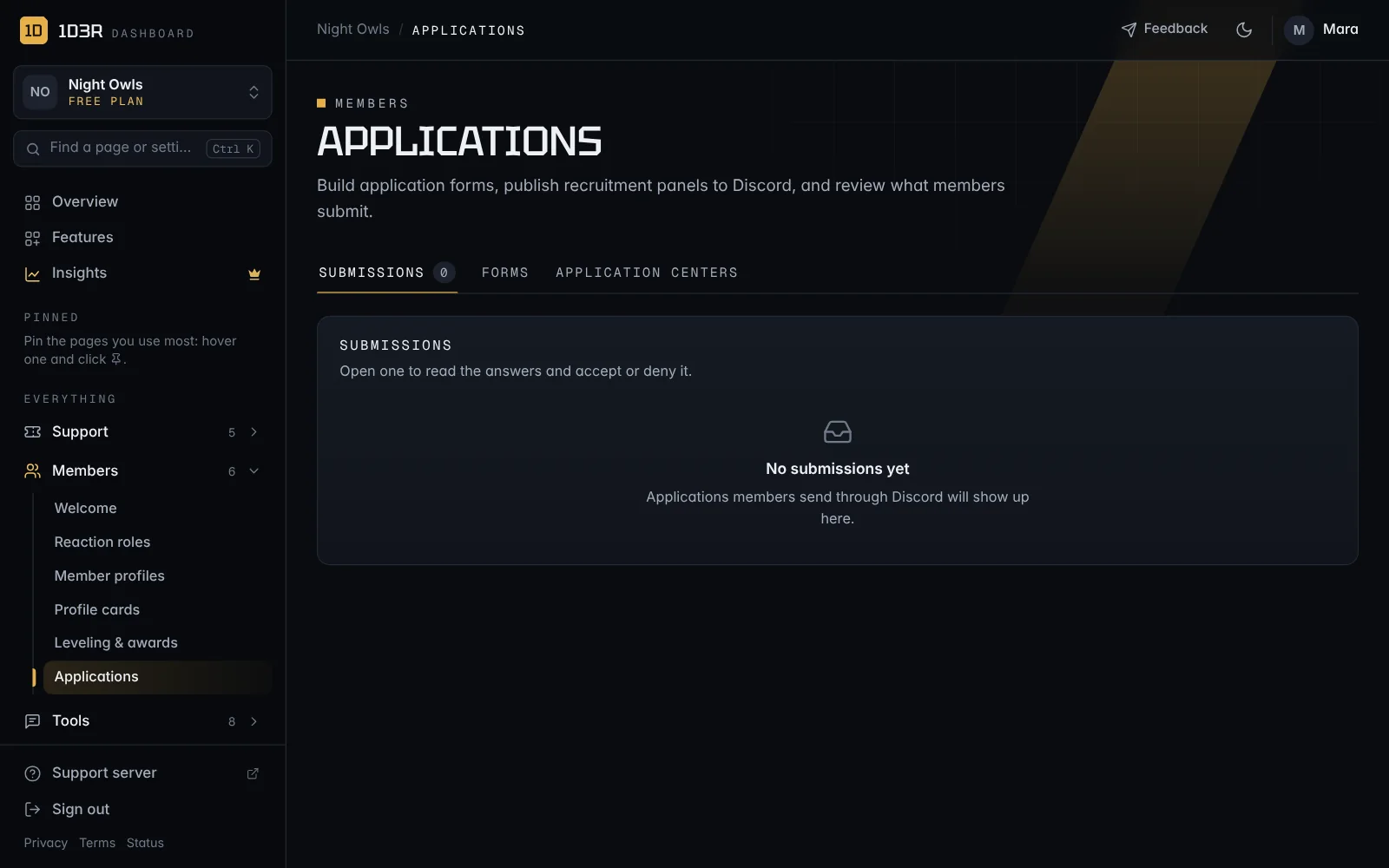
Everything also shows on the dashboard under Submissions, where you can read full answers and decide there too.