Member history
Look up any member and see their warnings, timeouts, bans and AutoMod record on one page.
Member history puts everything your staff have on record about one person on a single timeline: warnings, timeouts, kicks, bans, AutoMod, and when they joined and left. With Premium it also shows their tickets and applications, and your team can keep private notes.
Who can use it
Your staff role and moderator role (the ones chosen on Settings) can open Member history straight away. They see this page and nothing else in the dashboard unless you give them more.
- To turn that off, open Dashboard access and switch off Let staff open Member history.
- To give it to another role, tick Member History for that role on Dashboard access.
- The server owner, and administrators if you've switched that on, always have it.
Look someone up
- Open Member history under Safety in the sidebar.
- Type a name or username and press Look up. For someone who left or was banned, paste their user ID instead.
- Press the member to open their page.
Recently on record lists everyone with a warning, moderation action, AutoMod hit or staff note, newest first.
You can also get there from:
- AutoMod alerts: the Member history button under each alert.
- Tickets: the Opener's history button on the staff actions message in every new ticket.
- Applications: the Member history link next to the applicant's ID.
Note: The buttons in Discord need your dashboard's public address in
DASHBOARD_URL, likehttps://dashboard.1d3r.com.
What's on the page
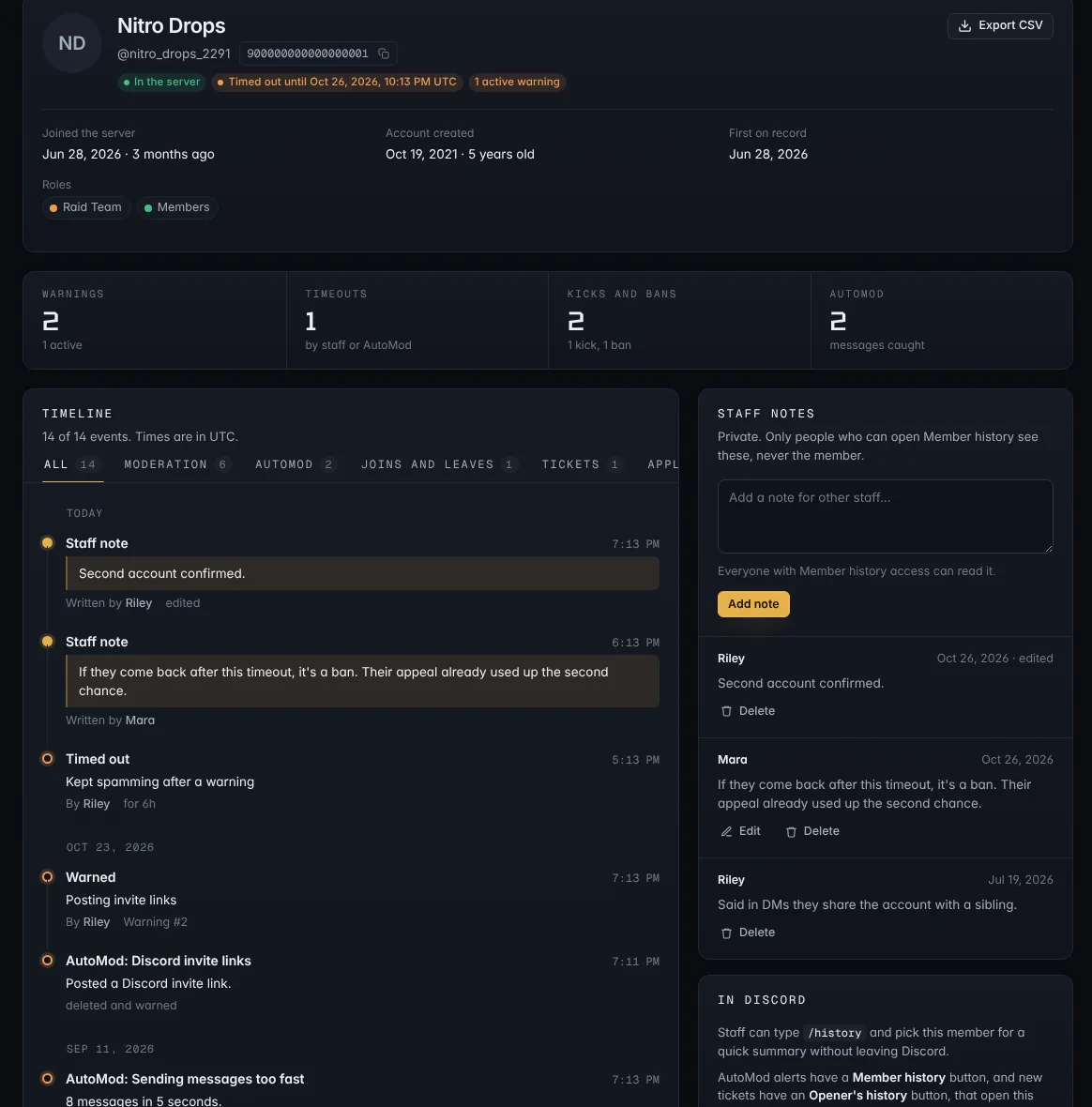
- At the top: whether they're in the server, banned or timed out, when they joined, how old their account is, and their roles.
- The counts: warnings (and how many are still active), timeouts, kicks and bans, and AutoMod hits.
- The timeline: newest first, grouped by day. Use the tabs to show only moderation, AutoMod, joins and leaves, tickets, applications or notes. Times are in UTC.
Actions taken with the bot show who did it and why. Bans, kicks and timeouts done straight in Discord show up too, marked done in Discord, not with the bot, with the reason given in Discord.
Note: Joins, leaves and actions done in Discord are recorded from this update on. Warnings, bot moderation and AutoMod go back as far as your records do.
Staff notes
Premium: Staff notes are part of Premium.
Notes are for things your team should know that aren't a warning, like "Warned verbally about spoilers" or "Ban appealed, accepted on a second chance".
- Type in Staff notes on the right and press Add note.
- Everyone who can open Member history can read every note. The member never sees them.
- You can edit and delete your own notes. People with Settings access can delete anyone's.
- Adding, editing and deleting notes is recorded in the Audit log.
In Discord: /history
Type /history and pick a member. You get a private summary with their counts and the five latest entries, plus a button to open the full page.
Staff and moderator roles can use it (unless you've switched off Let staff open Member history), and so can anyone with the Moderate Members, Ban Members or Administrator permission.
Free and Premium
| Free | Premium | |
|---|---|---|
| Warnings and bans | All of them | All of them |
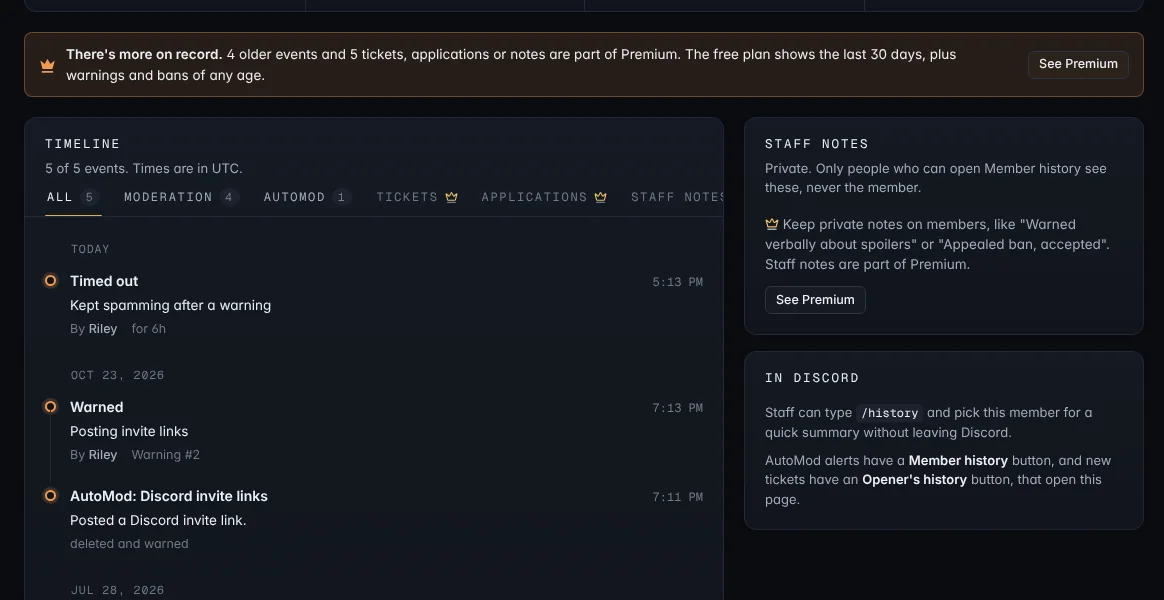
| Other moderation, AutoMod, joins and leaves | Last 30 days | Everything |
| Tickets and applications | — | ✓ |
| Staff notes | — | ✓ |
| Export to CSV | — | ✓ |
On the free plan, the page tells you when there's more on record than it can show.
Export
With Premium, press Export CSV to download the whole timeline as a spreadsheet, for an appeal or a handover. Exports are recorded in the Audit log.