Sign in and find your way around
Open the dashboard, pick your server, and learn where everything lives.
Everything 1D3R does is set up on the web, so nobody has to memorize commands.
Sign in
- Go to dashboard.1d3r.com, or press Open dashboard on 1d3r.com.
- Press Sign in with Discord and approve. The dashboard only asks to see your name, your server list and your roles. It never sees your password or email.
- Pick the server you want to manage.
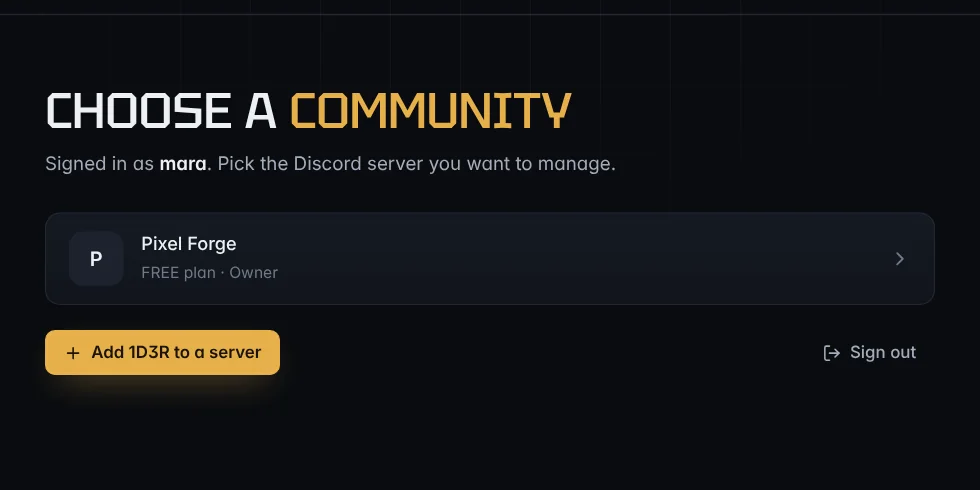
Note: A server only shows up if you're its owner or the owner has given one of your roles access. Discord administrators don't get in automatically. See Let your team into the dashboard.
The Overview
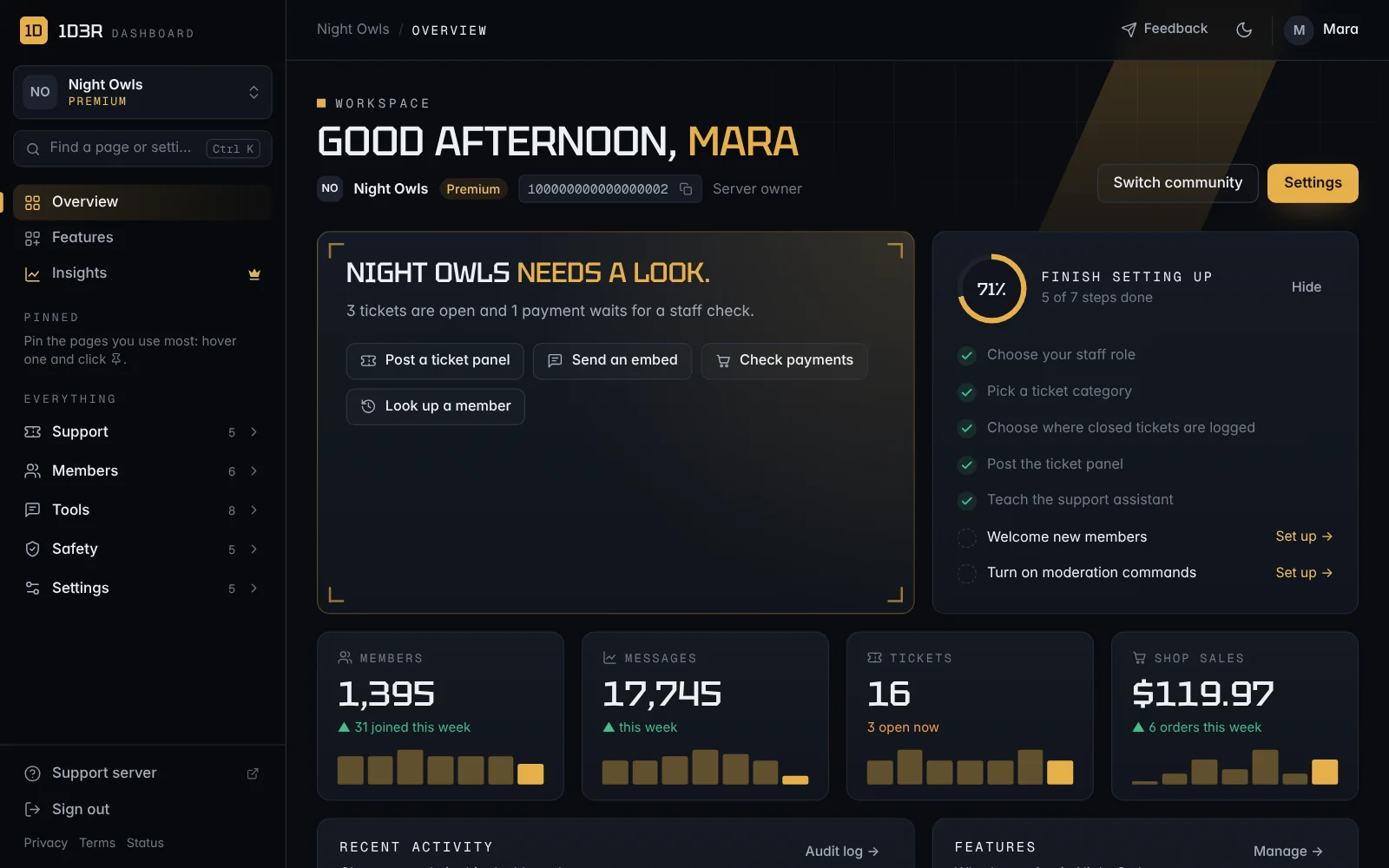
Each server opens on its Overview, your home page:
- What needs a look: one line that says what's waiting on you, like open tickets, payments to check or low ratings. When nothing is, it says the server is running smoothly.
- Quick actions: buttons for the jobs you do most, like posting a ticket panel or sending an embed.
- Finish setting up: a checklist that ticks itself off as you go. Hide tucks it away.
- Your numbers: members, messages, tickets and shop sales (or your ticket rating) for the last 7 days, each with a small chart.
- Recent activity: the latest changes your team made in the dashboard.
- Features: what's running in your server, at a glance.
Everyone only sees the parts they have access to. For example, recent activity needs access to the audit log, and sales need access to 1DShop. On the free plan, members and messages are part of Insights (Premium).
Getting around
The sidebar has Overview, Features and Insights at the top, then every page in five groups:
| Group | What's in it |
|---|---|
| Support | Tickets, Transcripts, Staff, Support assistant, Knowledge base |
| Members | Welcome, Reaction roles, Member profiles, Profile cards, Leveling & awards, Applications |
| Tools | 1DShop, 1DCount, Custom commands, Help menu, Sticky messages, Embed builder, Resource status, Recordings |
| Safety | AutoMod, 1DPurge, No-ping, Member history, Server logs |
| Settings | Settings, Premium, Branding, Dashboard access, Audit log |
- Groups fold away. The group you're in opens by itself. Click any other group to open it, and the dashboard remembers which ones you like open.
- Pin your favourite pages. Hover a page in the sidebar and click the pin. It moves to Pinned at the top, for you only, on every device. You can pin up to 6.
- Premium pages have a small gold crown.
- Find anything: press <kbd>Ctrl</kbd> + <kbd>K</kbd> (<kbd>⌘</kbd> + <kbd>K</kbd> on a Mac), or click Find a page or setting in the sidebar. Type a few letters to find a page, a setting inside a page (like payment methods or staff role) or an action (like Send an embed).
- Switch community: the server name at the top of the sidebar takes you back to your server list.
- Feedback: found a bug or have an idea? The Feedback button at the top sends it straight to the 1D3R team.
- Theme: the moon and sun button switches between dark and light.
Features: show only what you use
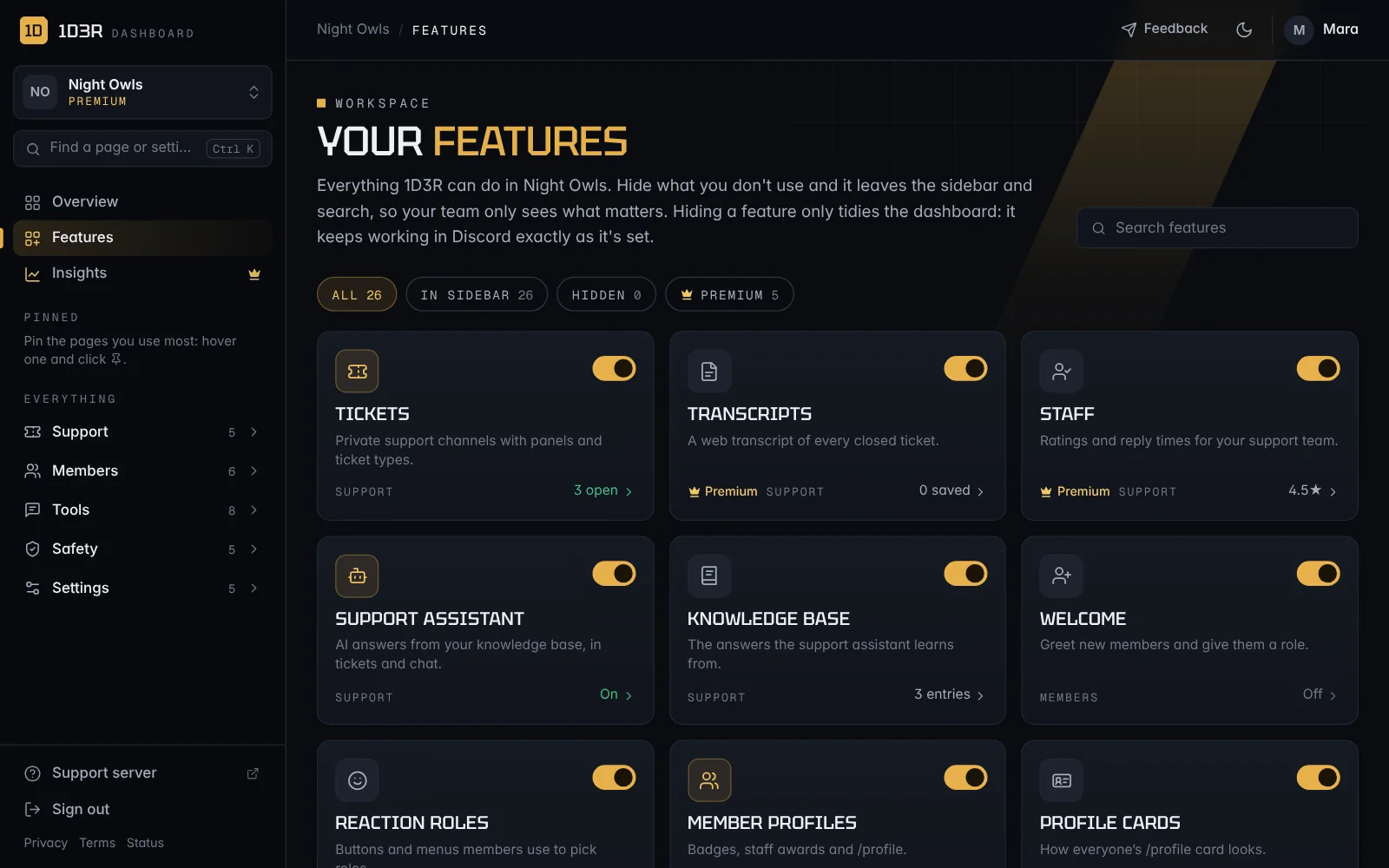
Features lists everything 1D3R can do, with a live status for each, like 12 open, 6 rules or Off. Use the switch on a card to hide a feature you don't use. Hidden features leave the sidebar and search for everyone on your server's dashboard, so your team only sees what matters.
Hiding only tidies the dashboard. The feature keeps working in Discord exactly as it's set. To turn a feature itself on or off, open its page. You need access to Settings to show or hide features.
Saving changes
Each section has its own save button. On pages with a save bar at the bottom, the bar says You have unsaved changes as soon as you change something. On other settings pages, a bar slides up with Discard and Save changes instead, and Discard puts the page back the way it was saved. If you try to leave with unsaved changes, your browser asks first. Most changes reach Discord within a few seconds.
Pages that post a message (like Welcome, Tickets and the Embed builder) show a live preview of how it looks in Discord, updating as you type.
Next
Work through the checklist: Finish setting up.