Set up tickets
Post a ticket panel so members can open private support tickets with your team.
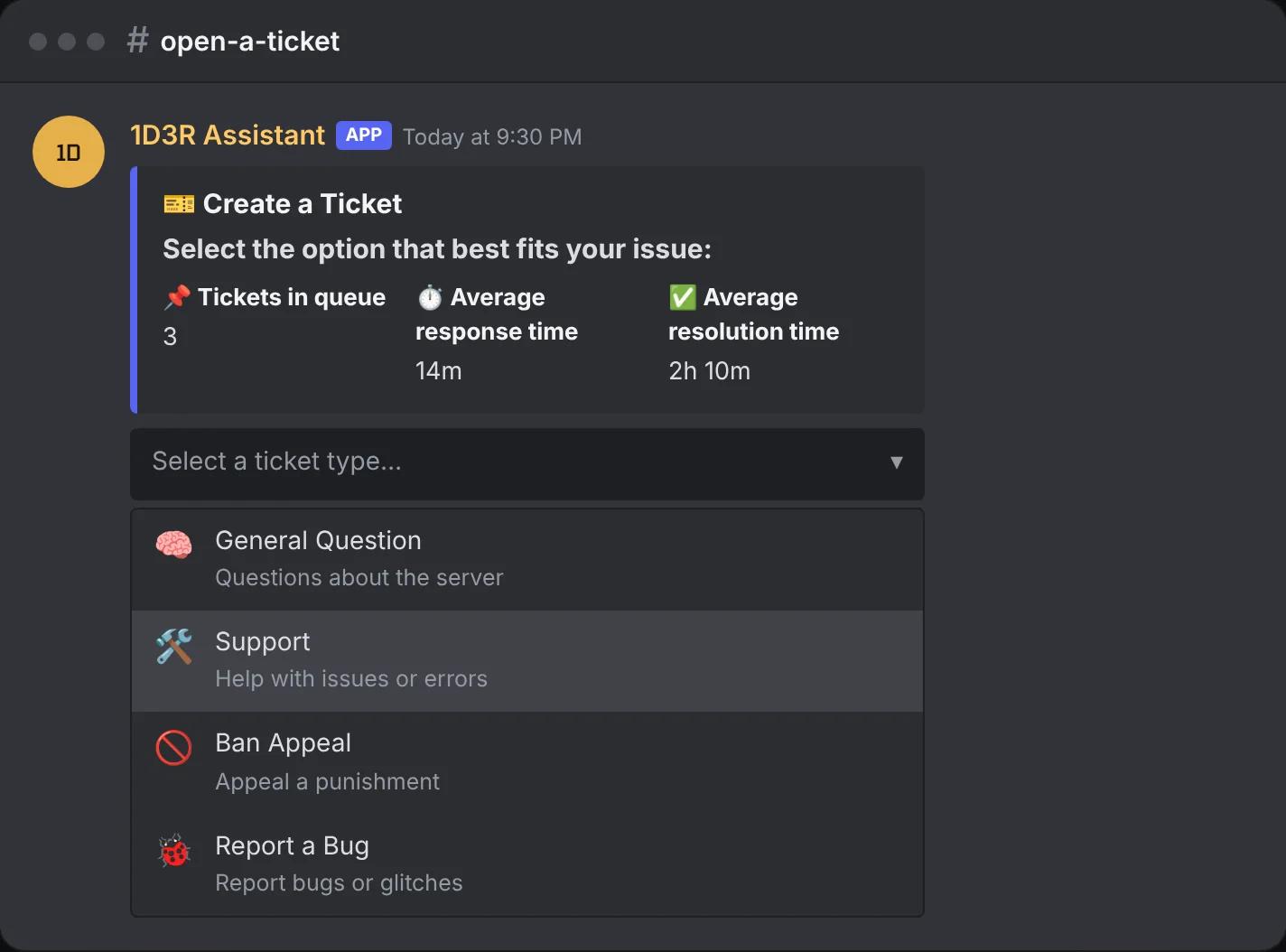
Tickets give each member a private channel with your support team. Members open one by picking a type from a ticket panel you post in a channel.
Before you start
On Settings, make sure these are set (they're the first steps of the setup checklist):
- Staff role: who handles tickets.
- Ticket category: where ticket channels are created.
1. Design the panel
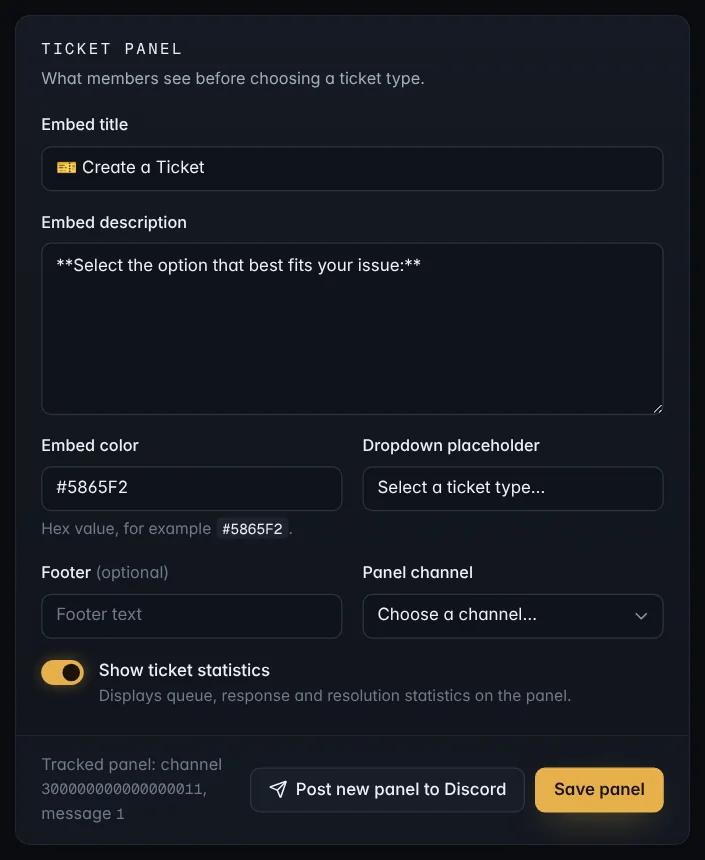
Open Tickets in the sidebar. The Ticket panel section controls the message members see:
- Embed title, Embed description and Embed color
- Dropdown placeholder: the grey text in the menu, like Select a ticket type…
- Footer (optional)
- Show ticket statistics: adds tickets in queue, average response time and average resolution time to the panel, kept up to date by the bot.
The Panel preview on the right updates as you type.
2. Post it
- Choose a Panel channel, like #open-a-ticket, and press Save panel.
- Press Post new panel to Discord.
The bot remembers the panel and keeps its statistics updated. If you change the design or your ticket types later, save and post it again.
Tip: Server admins can also run
/ticketpanelin a channel to post the panel there.
3. Choose your ticket types
New servers start with five types: General Question, Support, Ban Appeal, Report a Bug and Referral. Edit, turn off or delete any of them, or add your own. See Ticket types.
Give each type a Log and transcript channel. That's where its closed tickets, transcripts and low ratings are posted, and the setup checklist ticks off once one is set. Types without one aren't logged.
4. Set a ticket limit
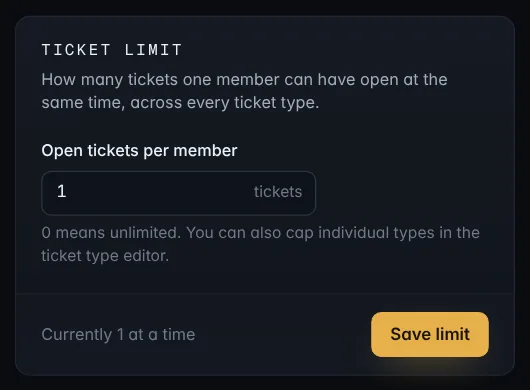
Ticket limit sets how many tickets one member can have open at once, across every type. Use 0 for no limit. You can also set a limit for a single type in its settings; when both apply, the lower one wins.
What happens next
When a member picks a type, the bot creates a private channel that only they and your staff can see, and posts the type's opening message. See Handle tickets as staff for what your team can do from there.