Finish setting up
The seven-step checklist on your Overview, and the core settings every server needs.
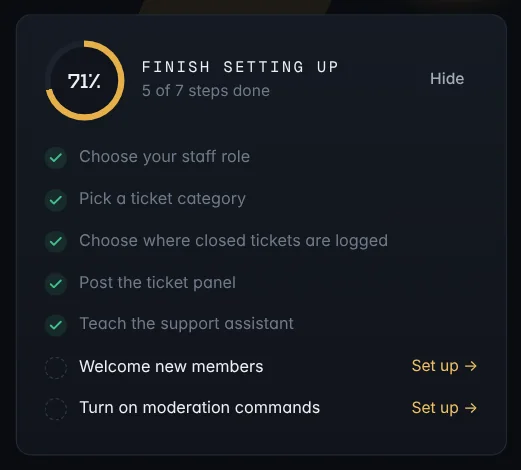
The Finish setting up checklist on your server's Overview ticks itself off as you go. Each step has a Set up button that takes you straight to the right page.
The core settings
The first three steps all live on Settings, under Settings in the sidebar.
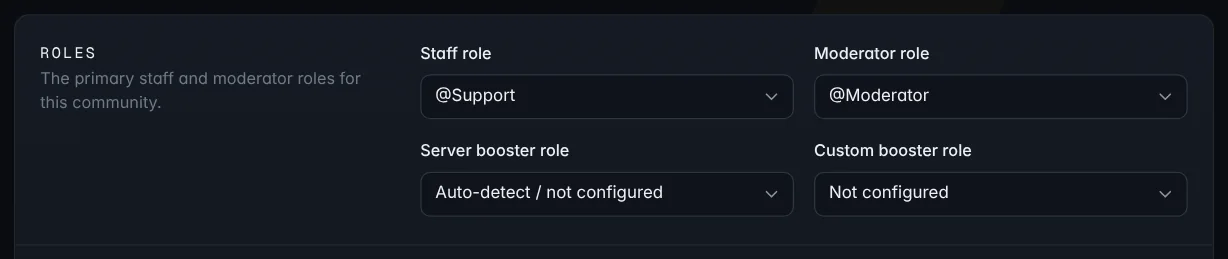
Roles
- Staff role: the role your support team has. People with it can claim, transfer and close tickets, use staff commands like
/closerequest, and see staff-only help topics. Give this role to everyone who handles tickets. - Moderator role: your moderators.
- Server booster role and Custom booster role: optional. Only needed if your server gives boosters extra perks.
Tickets
- Ticket category: new tickets open as private channels inside this Discord category. Make a category like Tickets first if you don't have one.
Where closed tickets are logged is set on each ticket type instead, so different kinds of ticket can go to different channels. See Ticket types.

Features
At the bottom of Settings you can switch off anything your server doesn't use: Tickets, Suggestions, Custom commands, Sticky messages, AI assistant and Patrol ping. Turning tickets off only blocks new ones; open tickets keep working.
Bot updates
Pick a Bot updates channel if you'd like announcements from the 1D3R team, like new features and planned maintenance, posted in your server. Leave it empty to skip them.
The other steps
- Post the ticket panel: see Set up tickets.
- Teach the support assistant: see Knowledge base.
- Welcome new members: the Welcome page sets a greeting and a role for people who join.
- Turn on moderation commands: on Settings → Moderation, switch on Enable moderation commands, choose which roles can use them and pick a Moderation log channel.
Next
Give your team access: Let your team into the dashboard.