Let your team into the dashboard
Choose which Discord roles can open each part of the dashboard.
By default only the server owner can open the dashboard. You decide who else gets in, and which parts they can change, on Dashboard access in the sidebar.
Note: Only the server owner can open this page, and the owner always has full access, so you can't lock yourself out.
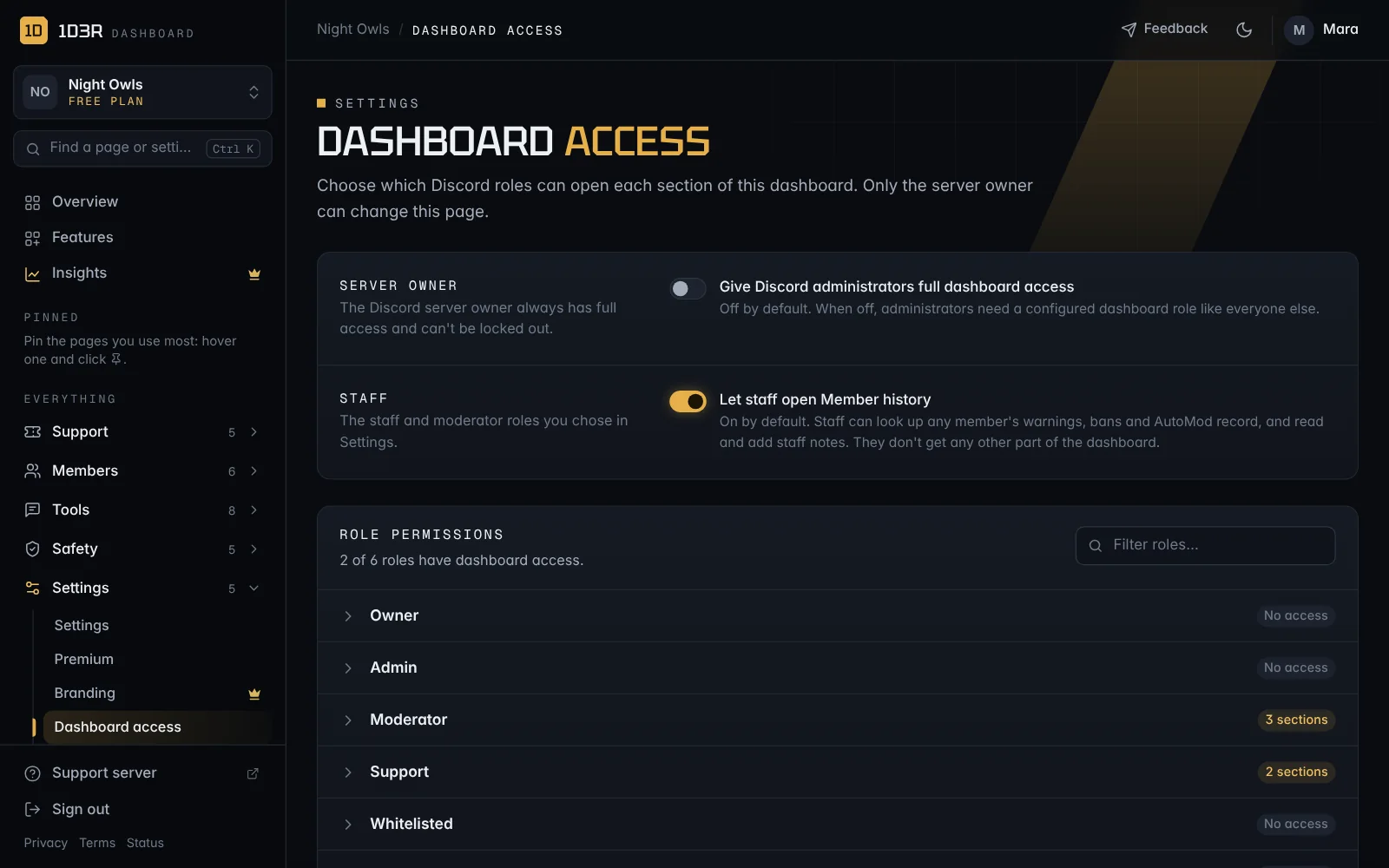
Give a role access
- Open Dashboard access.
- Press a role to open it, then tick the sections it may use. Select all and Clear are there to save clicks.
- Press Save dashboard permissions.
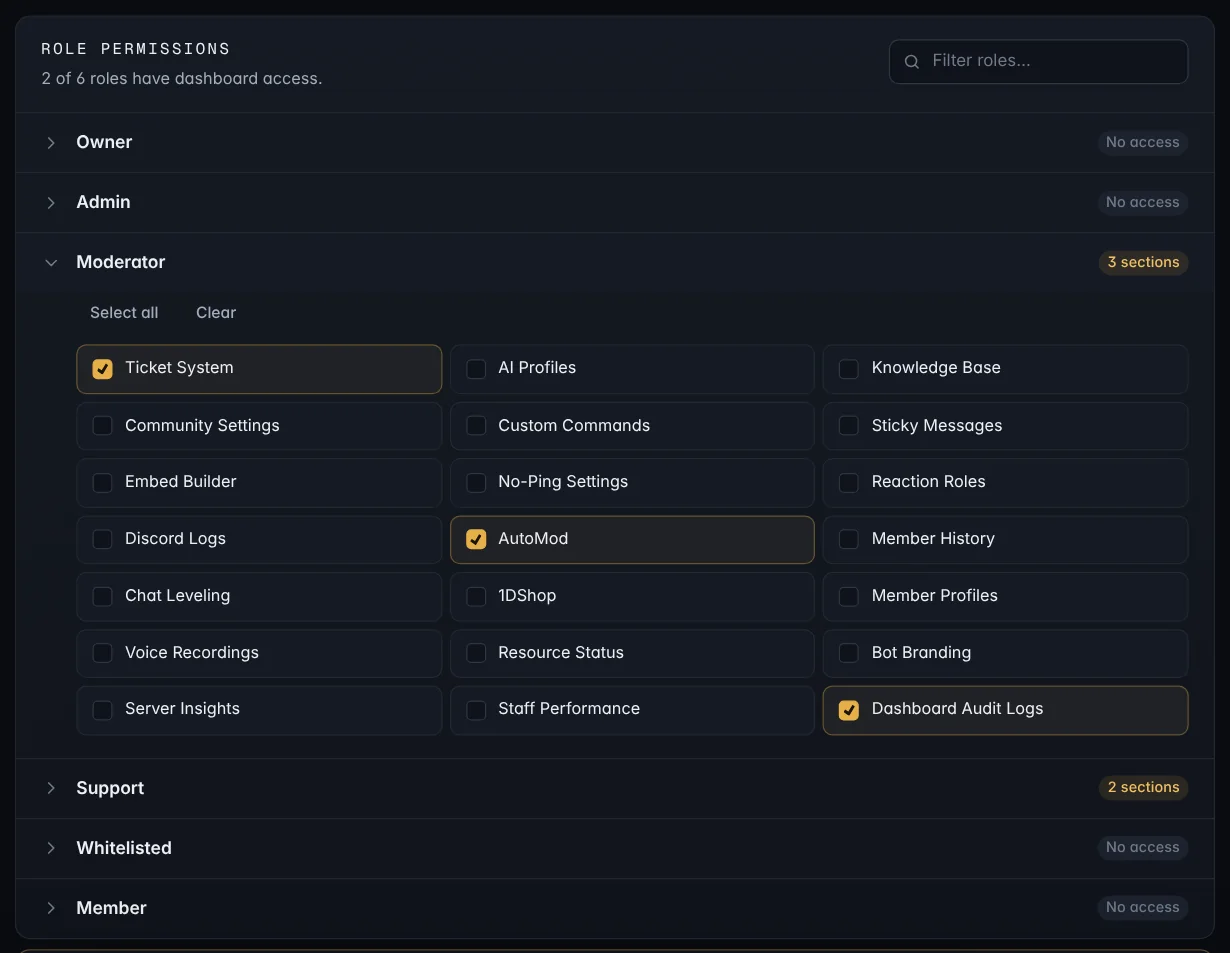
Anyone with that role can now sign in and see the server in their list. They only see the sidebar pages they're allowed to use. If someone has several roles, they get everything those roles allow together.
Discord administrators
Discord administrators don't get dashboard access automatically. To let every administrator in with full access, switch on Give Discord administrators full dashboard access at the top of the page.

Staff and Member history
Your staff and moderator roles from Settings can open Member history without being added here, so they can look up a member's record. To stop that, switch off Let staff open Member history. See Member history.
A good starting point
| Role | Sections |
|---|---|
| Support team | Ticket System, Knowledge Base |
| Moderators | Ticket System, AutoMod, Member History, Discord Logs, Dashboard Audit Logs |
| Community managers | Chat Leveling, Member Profiles, Reaction Roles, Sticky Messages, Embed Builder |
| Head admins | Everything, or switch on the administrator option above |
Tip: Dashboard Audit Logs shows every change made in the dashboard and who made it. Give it to the people who oversee your staff.