Member profiles, badges and awards
Profile cards for every member, badges they unlock, and awards your staff hand out.
/profile shows a member's profile card: their level, rank, activity and the badges and awards they've collected. /badges lists their badges.
The profile card
How the card looks (its theme, colors and what it shows) is set on the Profile cards page. See Profile cards.
Under Member profiles, you can still:
- Enable member profiles: switch
/profileon or off. - Server logo thumbnail: your logo on every card.
- Featured badges: how many badges show on the card.
- Show on profile: turn off messages, streak, join date or rank. They stay off on every theme.
Custom badges
Badges reward members for what they do. Under Custom badges, give each one an emoji or image, a Badge name, a Rarity and a Description, then choose how it Unlocks:
- Reach level: a level number
- Eligible messages: a message count
- Activity streak: days in a row
- Membership days: days since they joined
- Manual only: staff give it out by hand
Members unlock badges automatically as they hit the requirement.
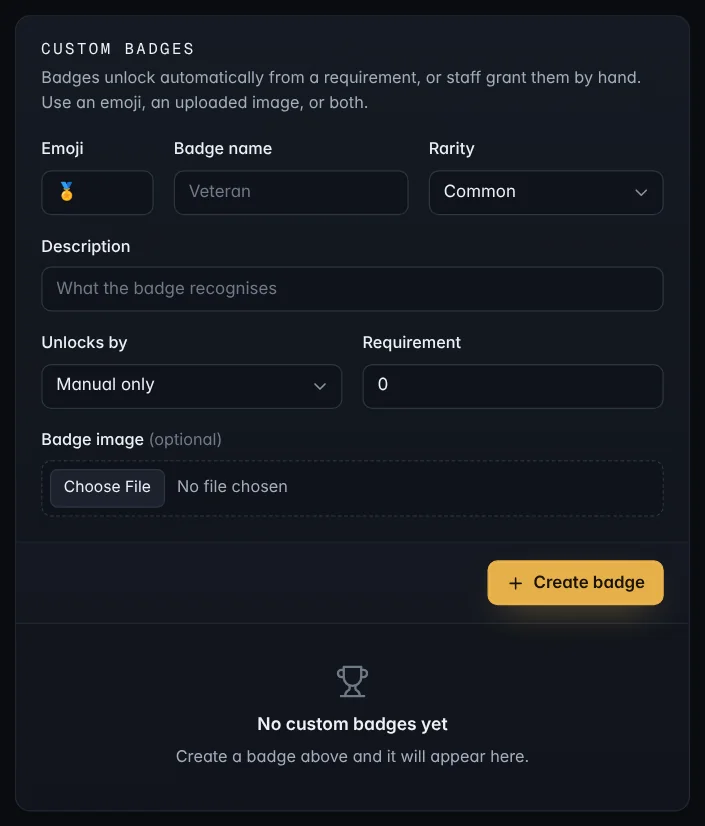
To hand out a badge yourself, use Grant a badge with the member's Discord user ID.
Awards
Awards are for recognising someone: Staff of the month, Event winner, Helped 100 people. Under Issue an award, pick a Preset or write your own, add the member's Discord user ID, an emoji or image, an Award title and Why they received it.
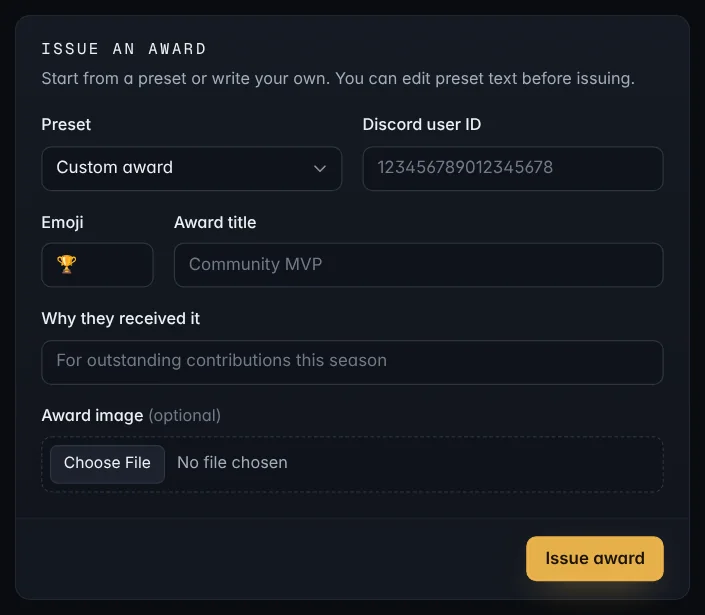
Tip: To copy someone's user ID, turn on Developer Mode in Discord (Settings → Advanced), then right-click them and choose Copy User ID.