Knowledge base
Teach the AI assistant with FAQ entries, documents and solved tickets.
The Knowledge base is what the AI support assistant reads before it answers. It holds two kinds of knowledge:
- FAQ entries you write or upload.
- Ticket entries: summaries of solved tickets that your staff approve.
Write an FAQ entry
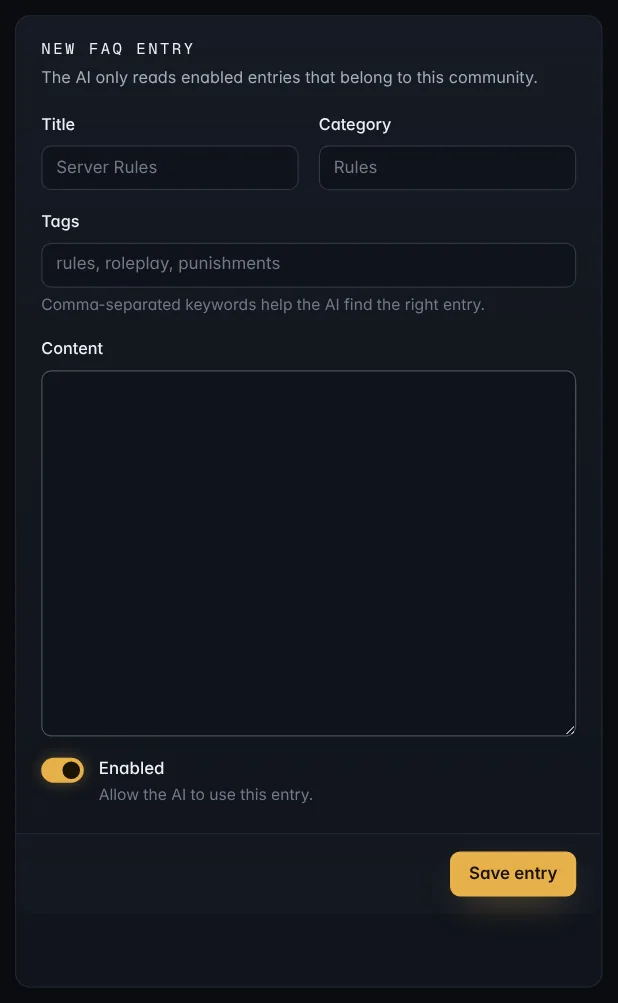
On Knowledge base, fill in New FAQ entry:
- Title: what the entry covers, like Whitelist applications.
- Category: for your own sorting, like Rules or Accounts.
- Tags: comma-separated words people might use when asking, like whitelist, apply, application. Tags help the AI find the right entry.
- Content: the answer, written the way you'd explain it to a member.
- Enabled: only enabled entries are used.
Press Save entry.
Tip: One topic per entry works best. Several short entries beat one huge one.
Upload documents
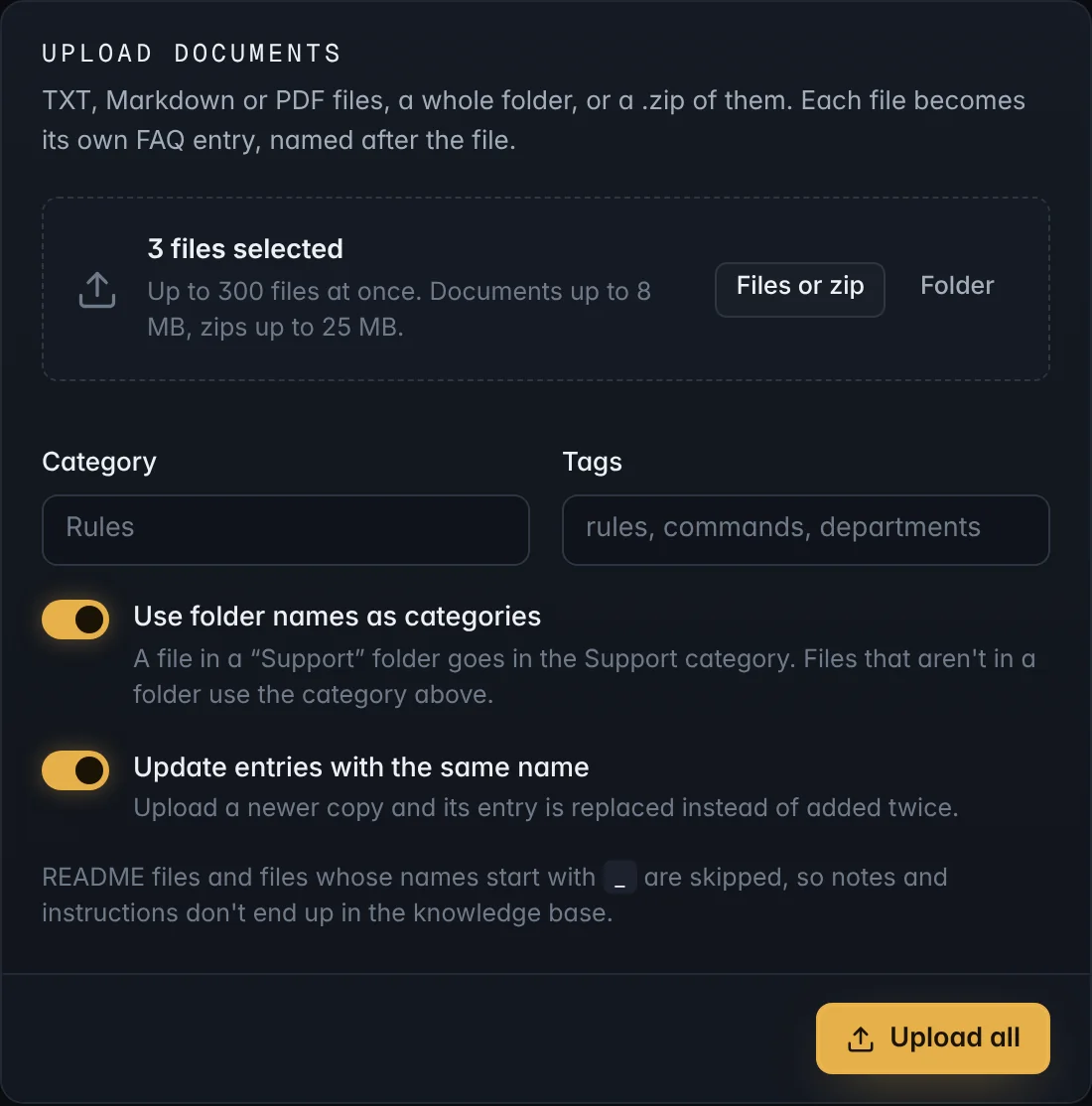
Already have your rules or guides written up? Under Upload documents, add them all at once:
- Files or zip: pick one or more TXT, Markdown or PDF files, or a .zip of them.
- Folder: pick a whole folder, including the folders inside it.
Each file becomes its own FAQ entry, named after the file, so give files clear names like Whitelist - How to apply.md. Several small files, one per topic, work better than one long file: the assistant finds the right one more easily.
- Use folder names as categories: a file inside a Support folder goes in the Support category. Files that aren't in a folder use the Category you type.
- Update entries with the same name: uploading a newer copy replaces its entry instead of adding it twice. Handy when your guides change.
- README files, and files whose names start with
_, are skipped, so notes and instructions don't end up in the knowledge base.
Up to 300 files at once. Each document can be up to 8 MB and each zip up to 25 MB. When it's done, the page says how many entries were added or updated, and lists anything it skipped and why.
Learn from solved tickets
When a ticket closes, the bot writes a short KB summary of the problem and the fix and posts it in the ticket type's log and transcript channel as Pending. A staff member then chooses:
- Approve for AI: the assistant can use it from now on.
- Do Not Use for AI: keep it out of the assistant's knowledge.
- Delete from KB: remove it.
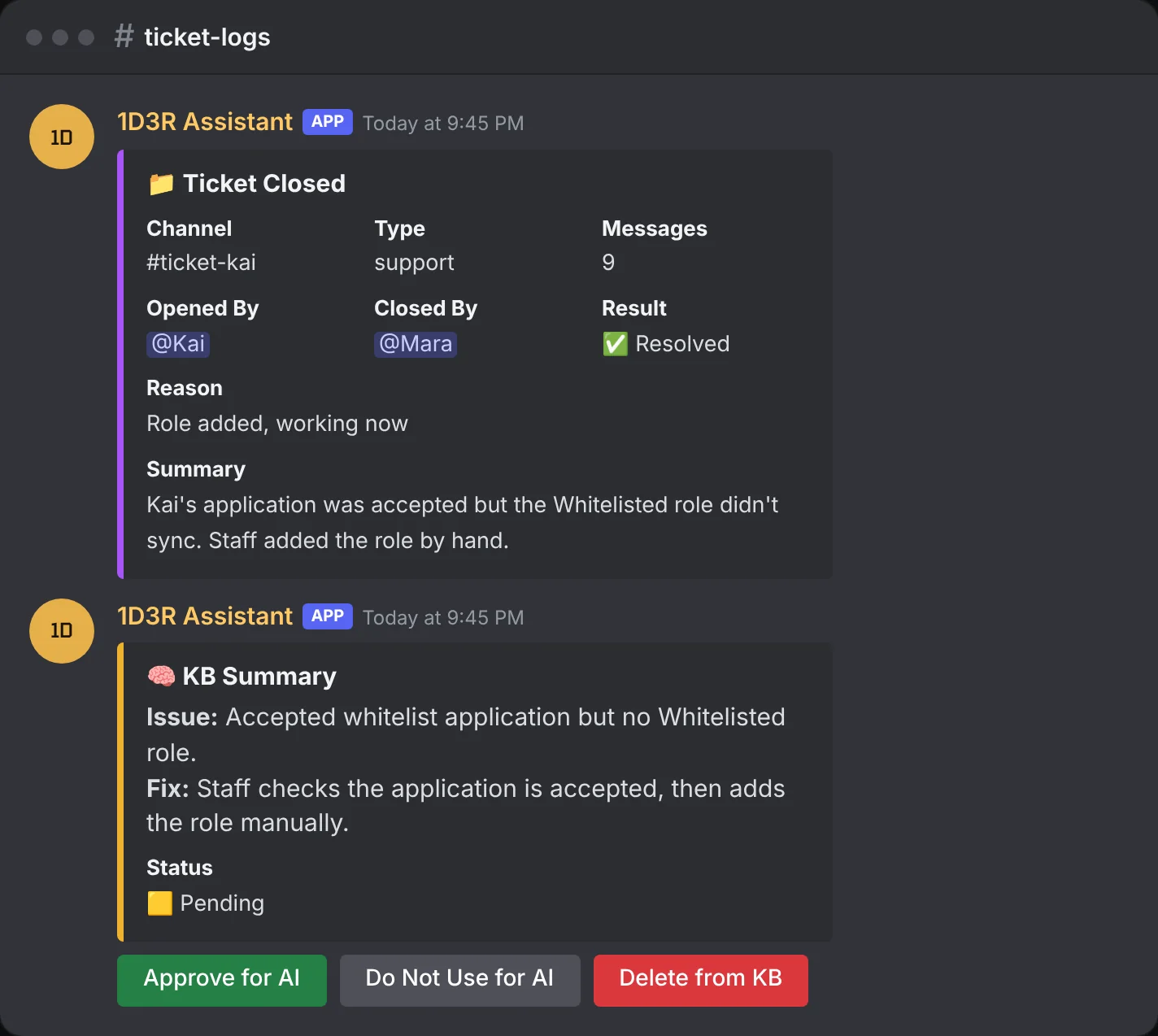
Every ticket entry is also listed under Ticket knowledge base on the dashboard, where you can edit the summary or change whether it's approved.
Test what it finds
Staff can run /kbsearch with a question to see which approved ticket knowledge the assistant would find.