Ticket types
Give each kind of request its own staff, category, opening message and AI settings.
Ticket types are the options in your panel's menu. Each one can go to different staff, open in a different category and start with its own message.
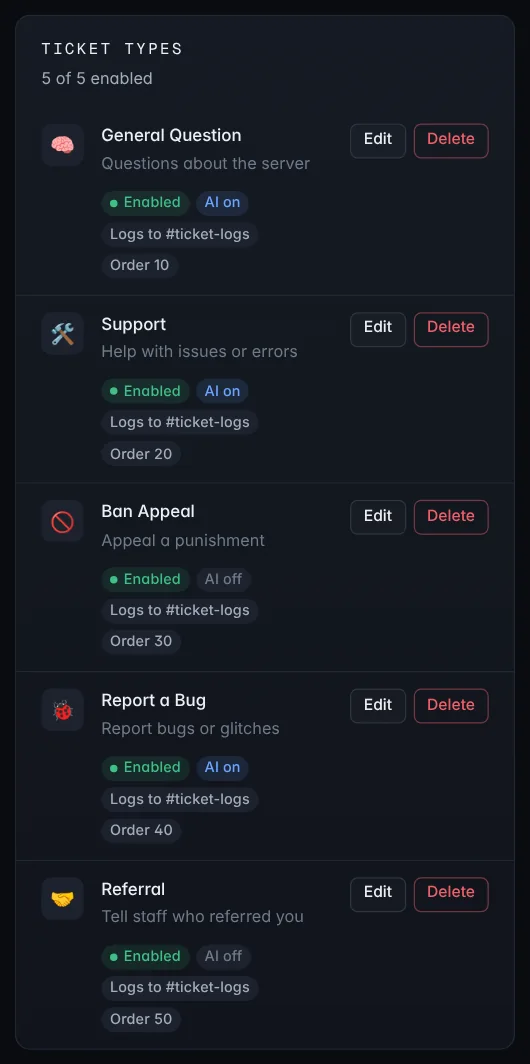
Add or edit a type
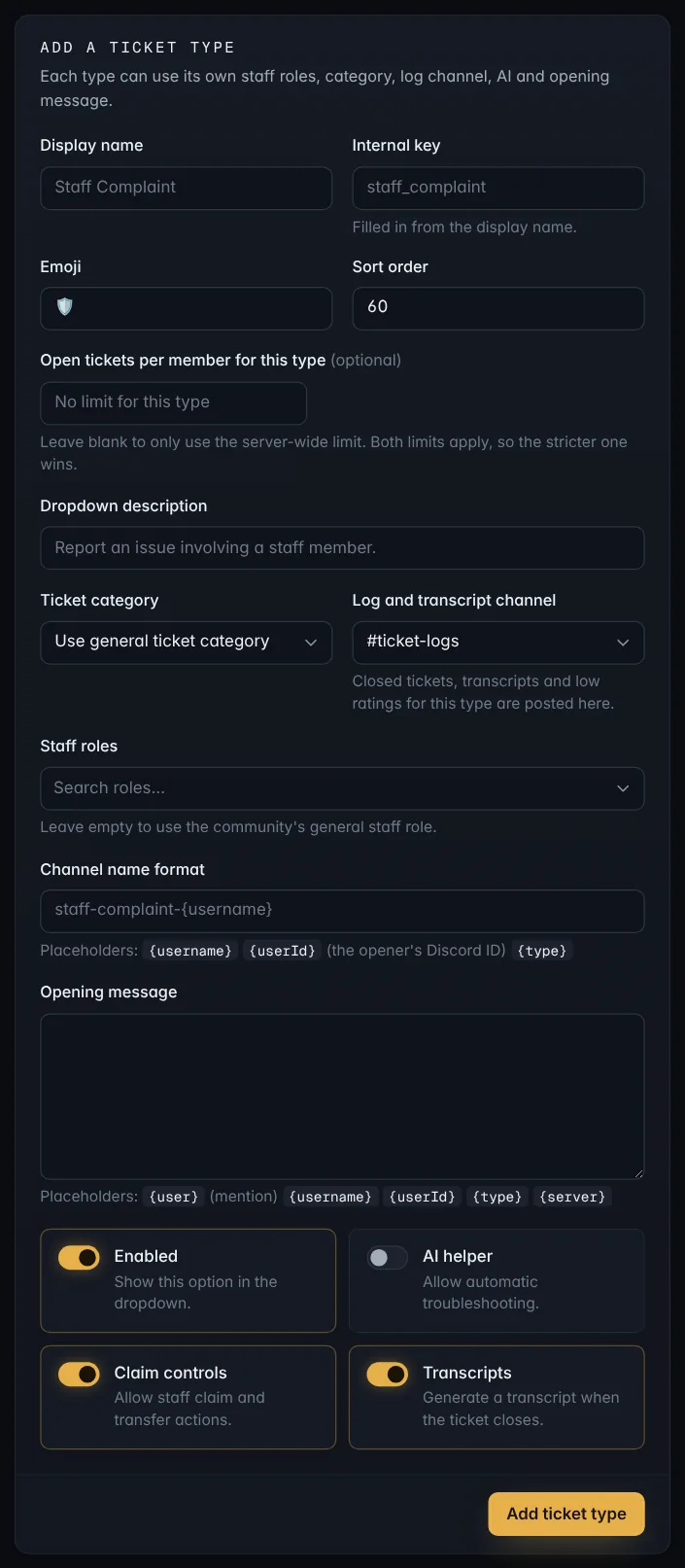
On Tickets, use Add a ticket type, or press Edit next to an existing one.
- Display name: what members see in the menu, like Staff Complaint.
- Internal key: filled in from the name. Leave it as it is.
- Emoji and Dropdown description: shown in the menu.
- Sort order: lower numbers appear first.
- Open tickets per member for this type: optional. Leave it blank to use only the server-wide limit.
- Ticket category: leave it on the general category from Settings, or open this type's tickets somewhere else.
- Log and transcript channel: where this type's closed tickets are posted. See below.
- Staff roles: who can see and handle this type. Leave it empty to use your general staff role. Handy for sending complaints about staff to senior staff only.
- Channel name format: how ticket channels are named. Use
{username},{userId}(the opener's Discord ID) and{type}. For example,appeal-{userId}makesappeal-256613863477215232. - Opening message: the first thing the bot says in the ticket. Tell members what to include. You can use
{user}(mentions them),{username},{userId},{type}and{server}.
Where closed tickets go
Each ticket type has its own Log and transcript channel. When a ticket of that type closes, the bot posts there:
- the close log: who opened and closed it, the reason and a short AI summary
- the transcript (a file, or a link to the web transcript with Premium)
- the KB summary for staff to approve
- low ratings (1 or 2 stars), if Alert staff about low ratings is on
Pick a channel only staff can see. You can send every type to the same channel, or split them up, for example ban appeals to a senior-staff channel. A new type starts with the channel most of your other types use. Choose Don't log tickets of this type to skip logging for a type.
The ticket list shows where each type logs. If its channel was deleted, the type shows Log channel missing.
Note: This used to be one Ticket log channel on the Settings page. If your server had one, it was copied to every ticket type that didn't have its own, so nothing stopped being logged.
If the AI escalation has no Escalation log channel of its own, escalation summaries go to the ticket type's channel too.
The switches
- Enabled: show this type in the menu.
- AI helper: let the AI support assistant reply in these tickets.
- Claim controls: add the Claim, Unclaim and Transfer buttons.
- Transcripts: save a transcript when the ticket closes.
Press Add ticket type or Save ticket type when you're done. Then press Post new panel to Discord so the menu in your panel shows the change.
Tip: Turn the AI helper off for sensitive types like ban appeals and staff complaints, where members should always talk to a person.